Amazon Q
Working with Amazon Q from Toolkit
Amazon Q is a natural language chat-based AI toolkit capable of suggesting code for various files, creating PRs for group approval, and deploying them in your projects. For detailed information about Amazon Q service, see the Amazon Q User Guide.
Prerequisites
To start working with Amazon Q, authenticate and connect to AWS using your AWS Builder ID or IAM AWS login credentials. See detailed plans and pricing for Amazon Q in the Amazon Q Pricing Guide. For detailed information on connecting your AWS account with the Toolkit, see the Authentication for Amazon Q + CodeWhisperer section in this User Guide.
Chatting with Amazon Q
Initiate a conversation with Amazon Q by asking questions in the Chat. Amazon Q can discuss various topics including AWS, software development, programming languages, and more. You can also ask specific questions about your projects to Amazon Q within VS Code. For detailed information about Amazon Q Chat, including topics and sample questions, see the Amazon Q Chat topic in the Amazon Q User Guide.
Below are quick Chat commands of Amazon Q that you can enter in the chat window.
/clear: Clear the current chat by removing all previously saved text and context./dev: Start a conversation about developing Amazon Q features and create a deployment plan for your project./transform: Start a conversation about Amazon Q Code Transformation, helping you convert code from one language version to another./help: Display a list of help topics and information about Amazon Q.
To start a new conversation with Amazon Q or access an existing conversation, follow one of the procedures below.
Open Amazon Q Chat from VS Code Toolbar
From the VS Code toolbar, select the Amazon Q icon (preview version) to open the Amazon Q Chat window (preview version). Start a new conversation by selecting the + icon. Enter your question or command in the “Ask a question or type ‘/’” text field to continue the conversation.
AWS Toolkit - Amazon Q, CodeWhisperer, and More
Feature Development with Amazon Q
Develop your project by conversing with Amazon Q about the type of feature you want to create. Explain desired features in the conversation, and Amazon Q will create a deployment plan for your new or existing project. For detailed information on developing features with Amazon Q, see the Developing Features with Amazon Q topic in the Amazon Q User Guide.
Note: Amazon Q feature development is only accessible with IAM identity authentication. See detailed plans and pricing for Amazon Q in the Amazon Q Pricing Guide.
Amazon Q doesn’t modify or update code until you’ve reviewed and approved changes in the diff file. To start feature development with Amazon Q, complete the following steps:
- From a new or existing VS Code project, open Amazon Q Chat.
- In the Amazon Q Chat window, type
/dev, then press enter to start developing Amazon Q features; the Amazon Q Chat text field is updated with the prompt “Briefly describe a task or issue.” - Respond to the prompt in the Amazon Q Chat window, briefly describing the feature you want to develop, then press enter to start creating a deployment plan.
- Amazon Q responds with a deployment plan when complete, and the text field is updated with a prompt.
- Enter any edits or questions about the deployment plan into the text field.
- When satisfied with the plan, select Write Code from the chat window for Amazon Q to suggest code for your project.
Integration and Conversation Capabilities in Integrated Development Environments (IDEs)
As mentioned, Amazon Q is also available in supported IDEs. This allows you to ask questions and receive assistance in your IDE by chatting with Amazon Q or triggering actions by entering ‘/’ in the chat box.
Feature Development Capability
Another compelling feature that Amazon Q offers is guiding you from ideas to building new features in your IDE and Amazon CodeCatalyst. You can transition from a natural language prompt to application features in minutes, with step-by-step interactive guidance and best practices, right from your IDE. With a prompt, Amazon Q will attempt to understand your application structure and parse your prompt syntax into logical deployment steps and atoms.
To use this feature, you can start by calling an action command /dev in Amazon Q and describing the task you need Amazon Q to handle.
From there, you can review, collaborate, and guide Amazon Q in a conversation about specific areas needing deployment.
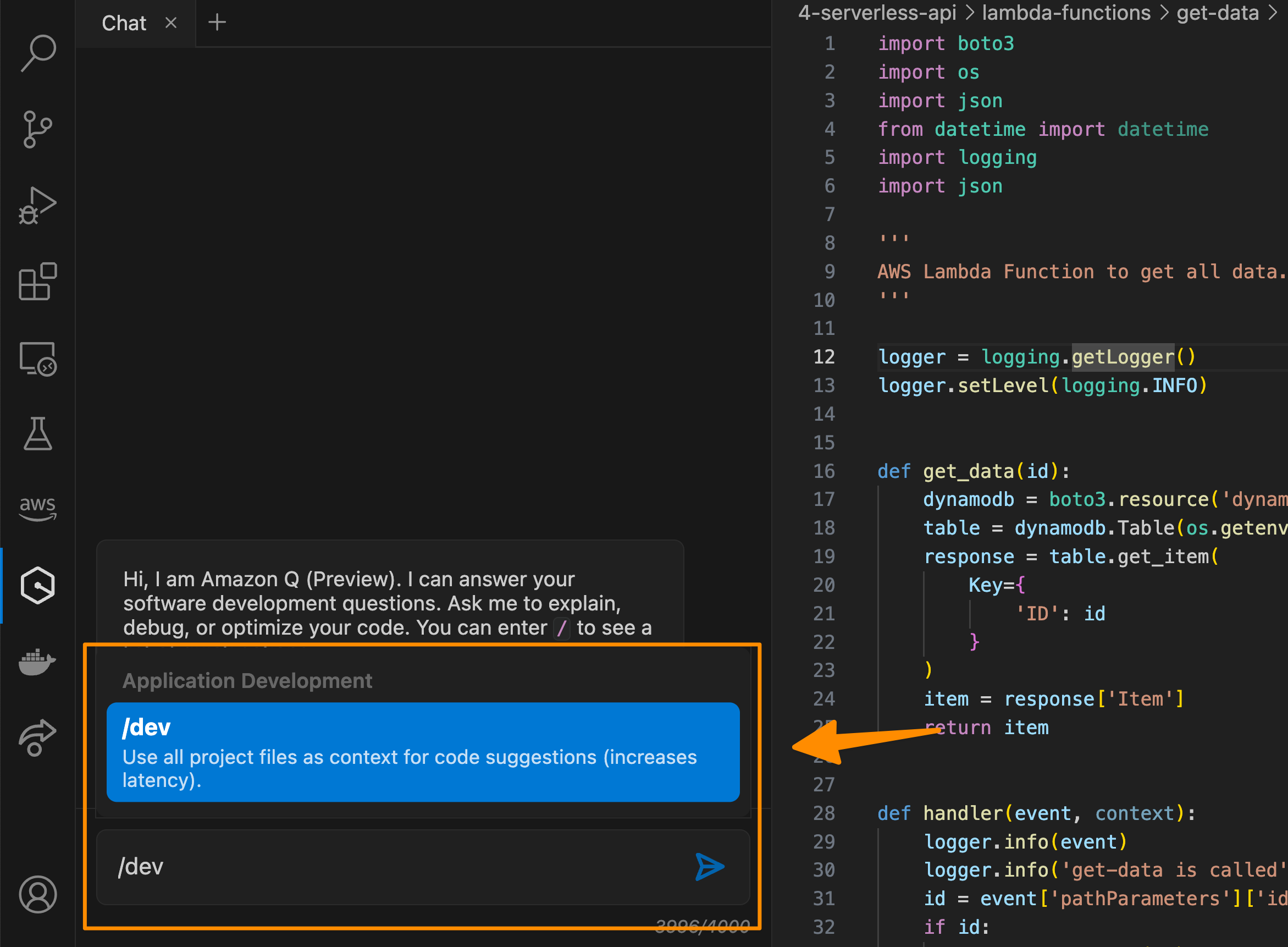
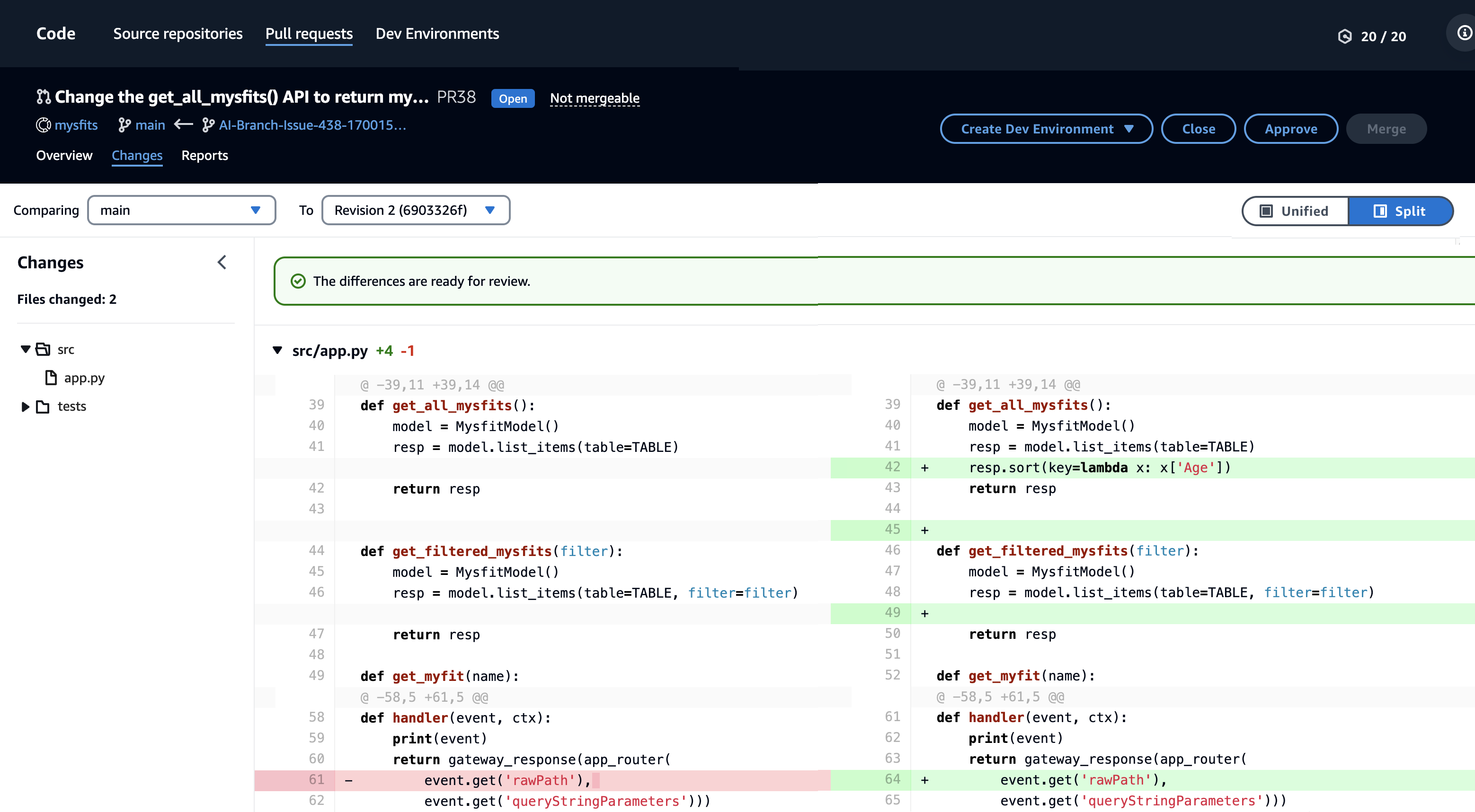
Additional capabilities to help you release features faster with full pull request capabilities available if you’re using Amazon CodeCatalyst. In Amazon CodeCatalyst, you can assign a new or existing issue to Amazon Q, and it will handle an end-to-end development process for you. Amazon Q will review the current code, propose a solution method, seek feedback from you on the method, generate ready-to-merge code, and post a pull request for review. All you need to do afterwards is review the proposed solutions from Amazon Q.
The following images show a pull request created by Amazon Q in Amazon CodeCatalyst.
Upgrading Applications with Amazon Q Code Transformation
With Amazon Q, you can upgrade an entire application in just a few hours by initiating a guided code transformation process. This capability, known as Amazon Q Code Transformation, simplifies maintaining, migrating, and upgrading your existing applications.
To get started, navigate to the CodeWhisperer section and then select Transform. Amazon Q Code Transformation automatically analyzes your current codebase, generates a transformation plan, and completes the core transformation tasks proposed by the plan.
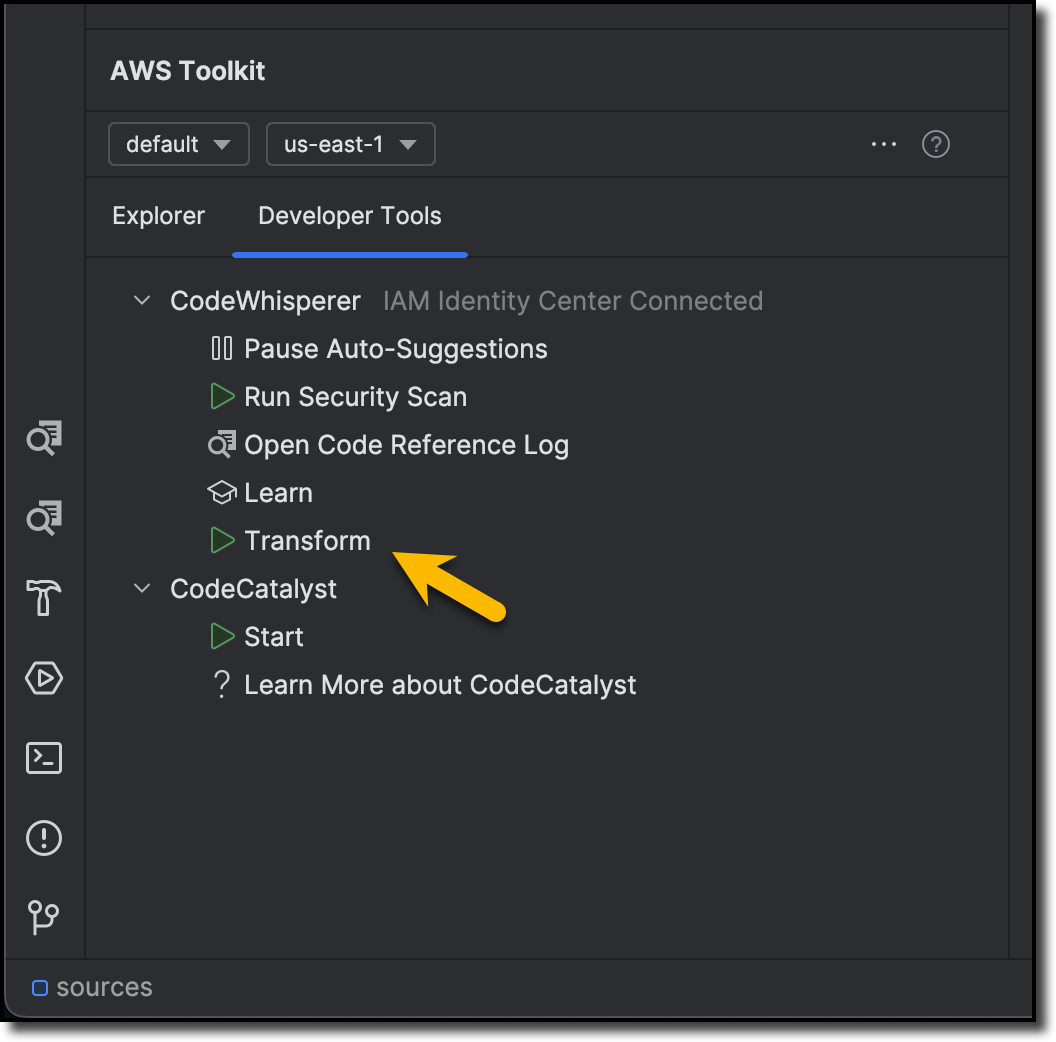
Additional information about this feature:
- Amazon Q Code Transformation is currently available in today’s preview version in AWS Toolkit for IntelliJ IDEA and AWS Toolkit for Visual Studio Code.
- To use this capability, you need to have Amazon CodeWhisperer Professional tier in the preview process.
- In the preview process, you can upgrade Java 8 and 11 applications to version 17, a long-term support (LTS) release of Java.
Accelerate Software Development with Amazon Q
Amazon Q brings a range of features and tools to accelerate the software development process, from source code suggestions to security scanning and source code transformation.
Direct Source Code Suggestions
Direct source code suggestions help you write code faster by displaying suggestions as you type.
Example of direct source code suggestions:
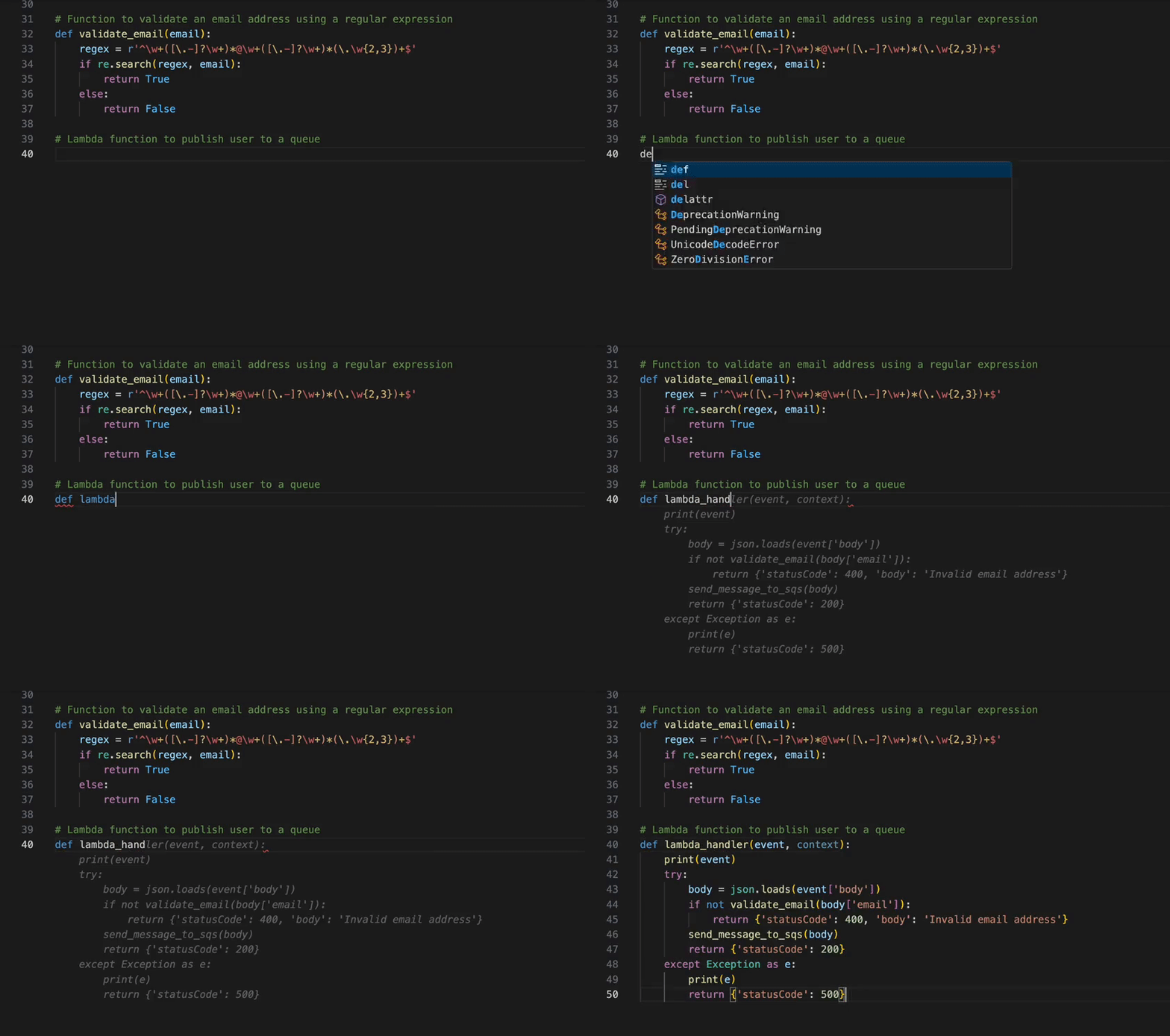
Supports over 15 languages including Python, TypeScript, Rust, Terraform, AWS CloudFormation, and more.
Conversations
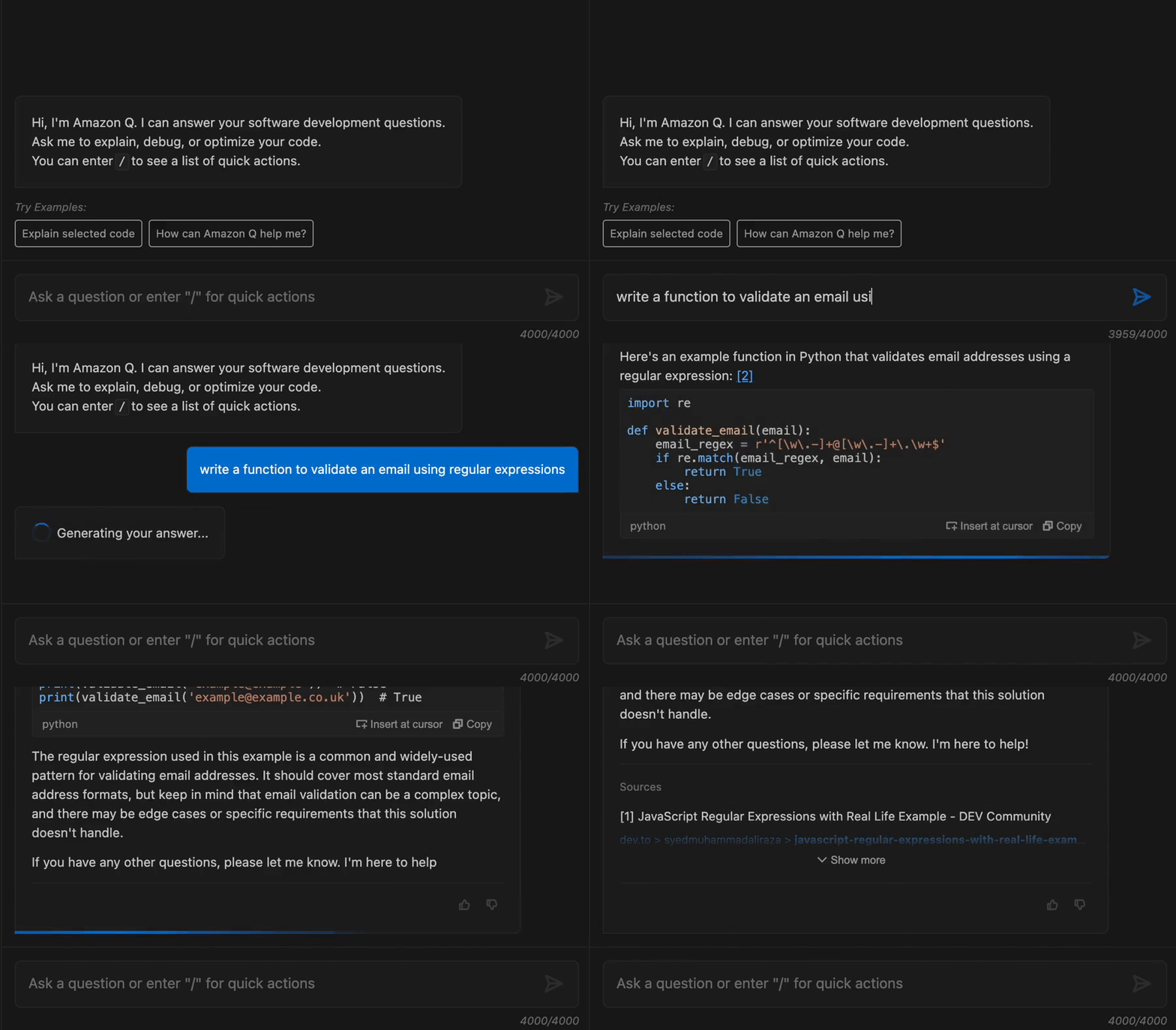
Create source code, explain source code, and get answers to software development questions.
Example of conversation with Amazon Q:
Security Scanning
Analyze and fix security vulnerabilities in your projects.
Example of fixing security vulnerability issues:
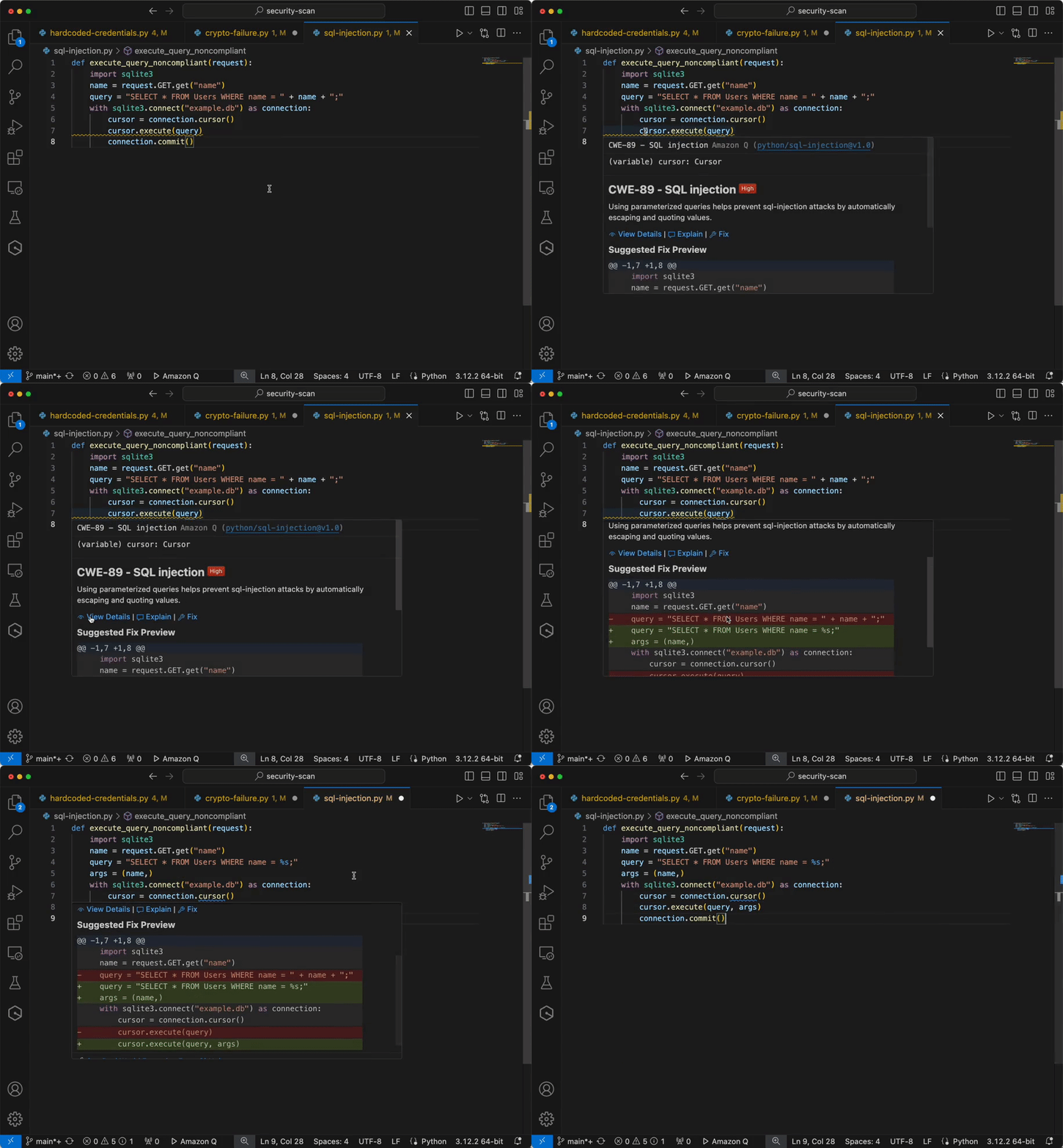
Supports 10 languages including Python, TypeScript, C#, and more.
Software Development Agent
Amazon Q can plan and deploy new features across multiple files
in your workspace.
To open the quick action menu and select the “/dev” action, type “/” in the chat.
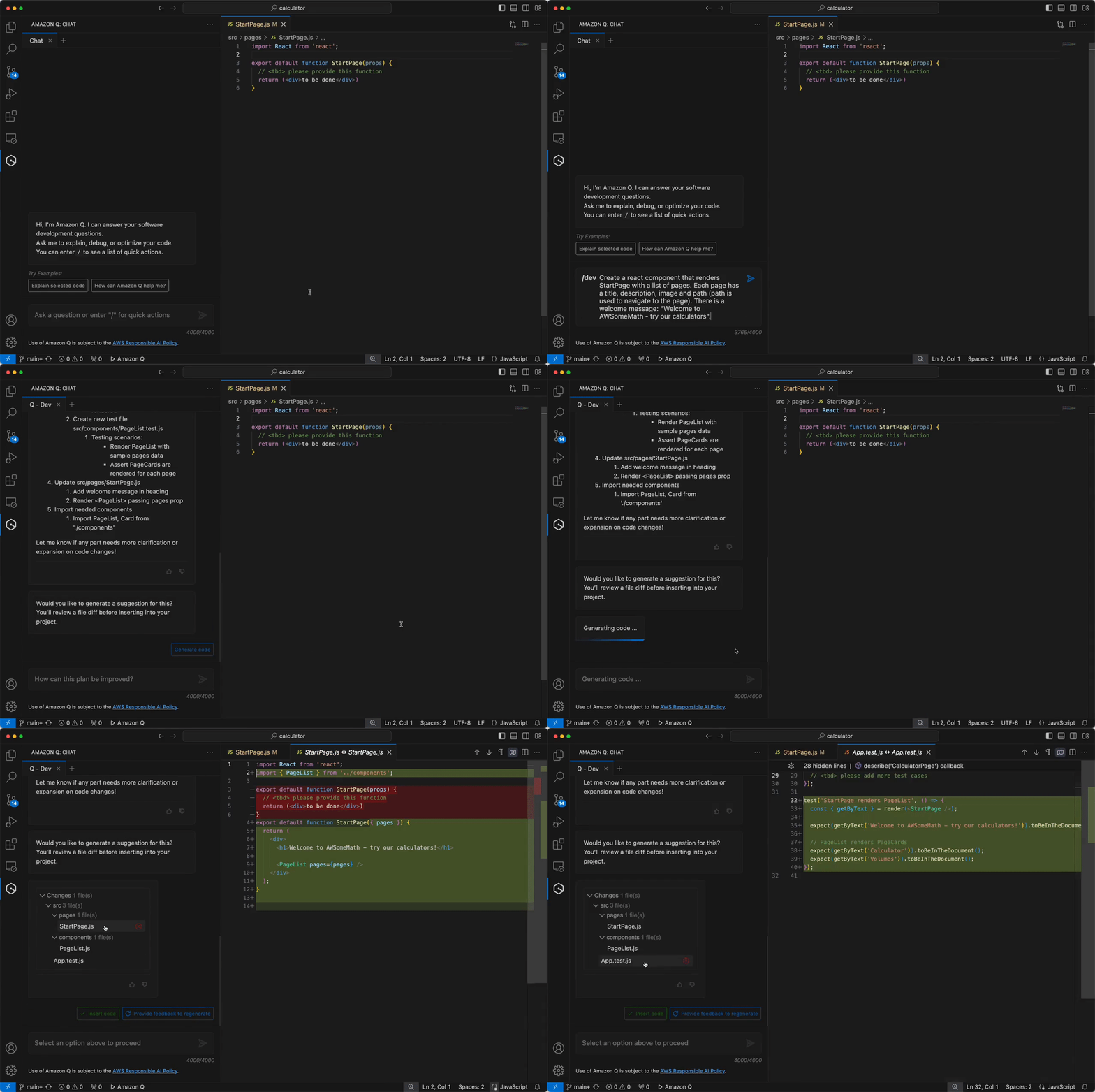
Note: This demo version has been abbreviated; planning and coding may take a few minutes.
Source Code Transformation Agent
Upgrade your Java application in minutes, not weeks.
To open the quick action menu and select the “/transform” action, type “/” in the chat.
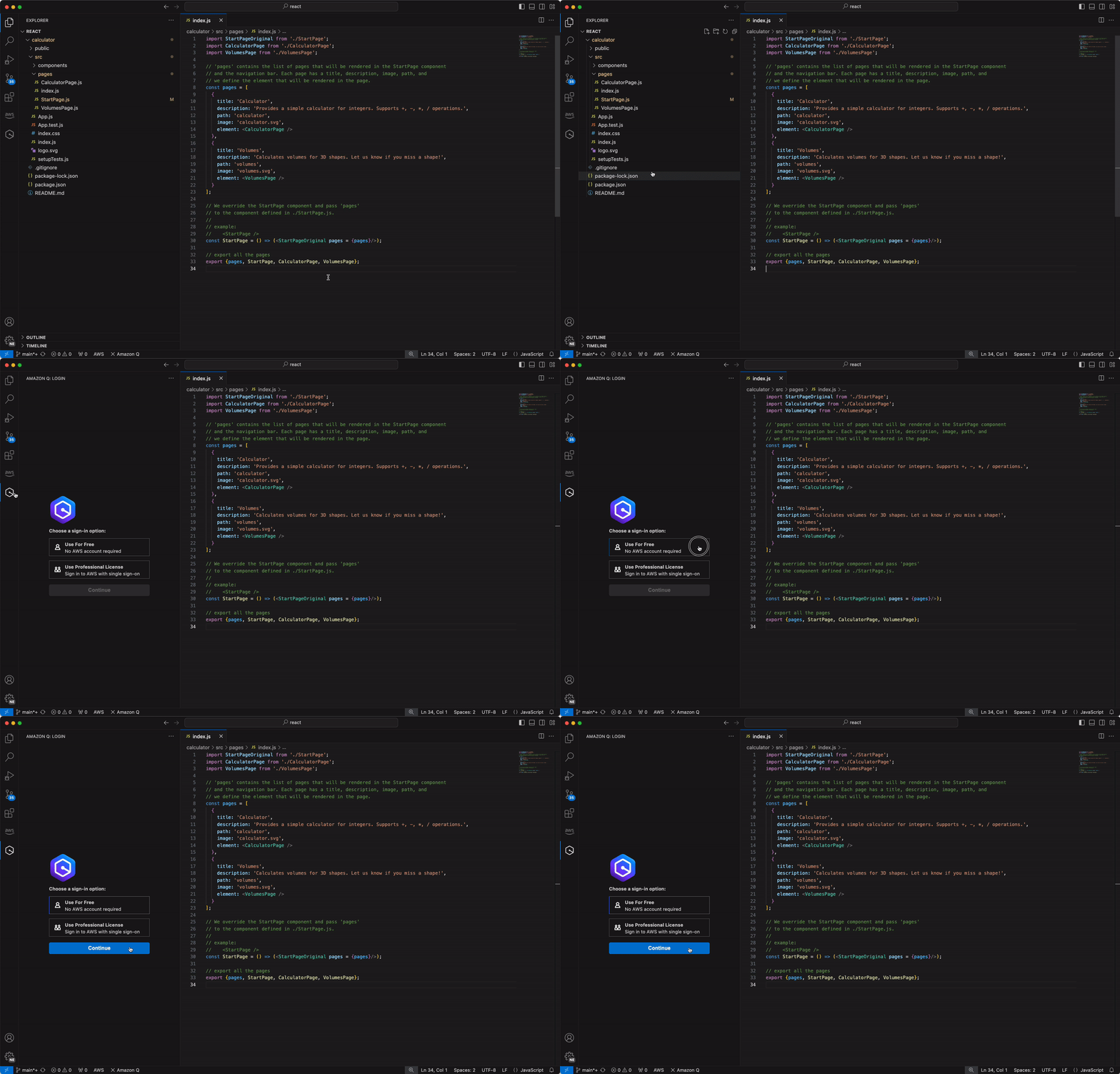
Currently supports upgrading Maven Java 8 or 11 projects to Java 17.
Getting Started
- Free Tier: Create or log in with an AWS Builder ID (no AWS account required!).
- Pro Tier: If your organization is in the Amazon Q Pro development tier, log in with single sign-on.
Amazon Q is not just a software development tool but also a trusted partner in your application development process.