Create AWS Builder ID
Create AWS Builder ID
When signing up to use AWS tools and services with an AWS Builder ID, you’ll create your own AWS Builder ID. The registration process involves signing up with an email address, name, and password.
Password Requirements
- Passwords must differentiate between uppercase and lowercase letters.
- Passwords must be between 8 and 64 characters long.
- Passwords must include at least one character from each of the following categories:
- Lowercase letters (a-z)
- Uppercase letters (A-Z)
- Numbers (0-9)
- Characters that are not numbers or letters (~!@#$%^&*_-+=`|(){}[]:;"’<>,.?/)
- The last three passwords cannot be reused.
- Passwords must not be used if they have been exposed in a third-party data breach.
Note: The tools and services using AWS Builder ID will guide you on creating and using AWS Builder ID as needed.
How to Create AWS Builder ID
- Visit the registration page of the AWS tool or service you wish to access, or go to the AWS Builder ID profile page.
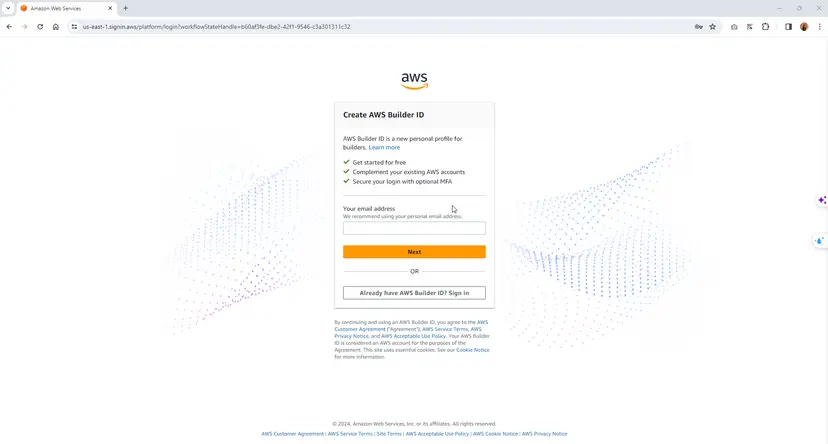
- On the Create AWS Builder ID page, enter your Email Address. We recommend using a personal email.
- Click Next.
- Enter your Name, then click Next.
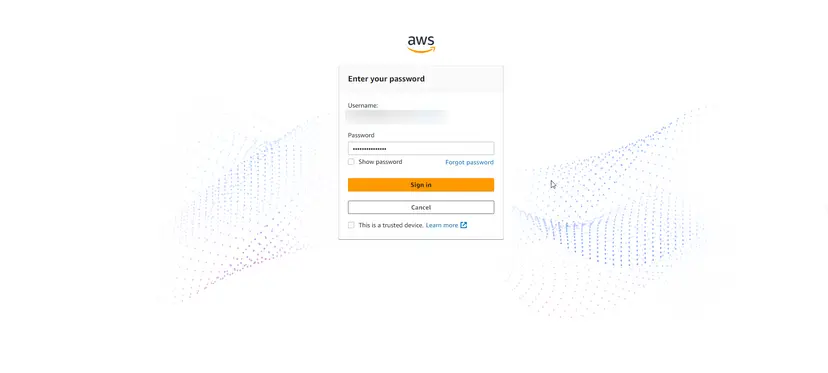
- On the Email Verification page, enter the verification code sent to your email address. Click Verify. Depending on your email provider, it may take a few minutes to receive the email. Check your spam and junk folders for the code. If you do not receive an email from AWS after five minutes, click Resend Code.
- After we verify your email, on the Choose a Password page, enter your Password and Confirm Password.
- If Captcha appears as an additional security measure, enter the characters you see.
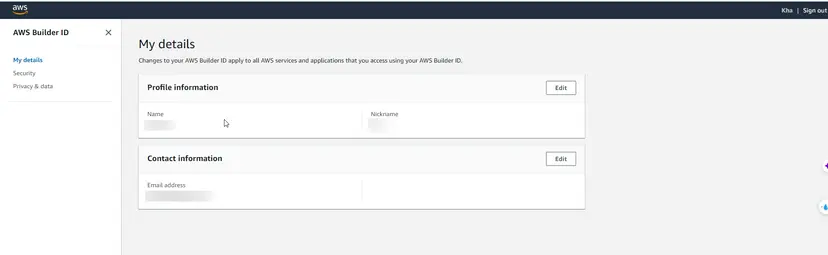
- Click Create AWS Builder ID.
Trusted Devices
Once you select the Trusted Devices option from the login page, we consider all subsequent logins from that web browser on that device to be authorized. This means you won’t need to provide an MFA code on that trusted device. However, if your browser, cookies, or IP address changes, you may need to use an MFA code for additional verification.
Authentication and Connection Using AWS Builder ID
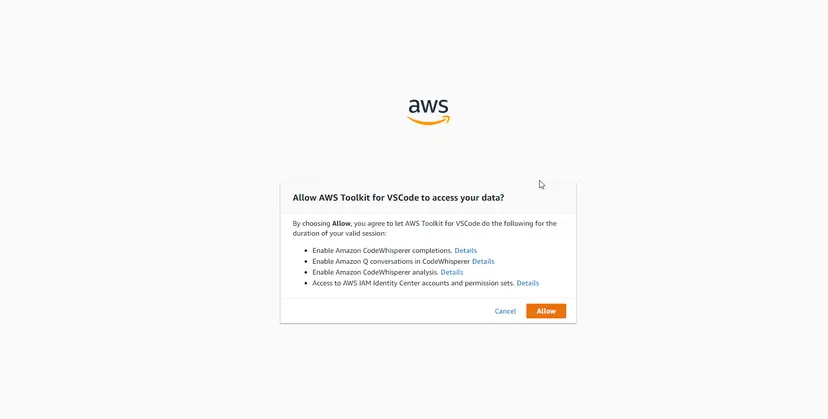
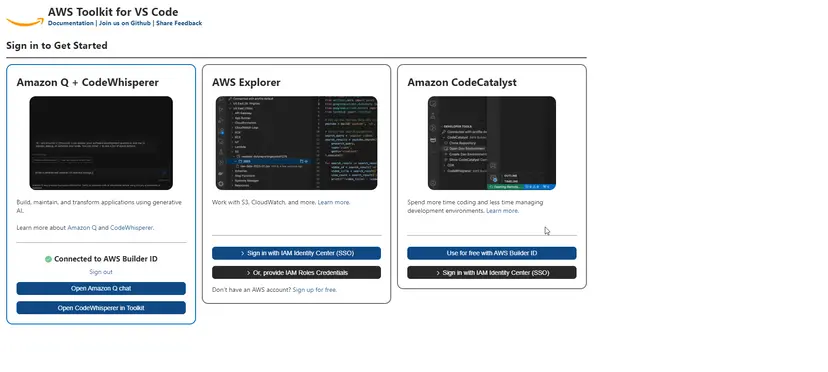
In the Sign in to Get Started user interface section, select the Use for free with AWS Builder ID button and confirm that you want to proceed to the AWS authentication request page on your default web browser.
On your default web browser, confirm that the authentication code matches the code from VS Code, then select the Confirm and continue button to proceed.
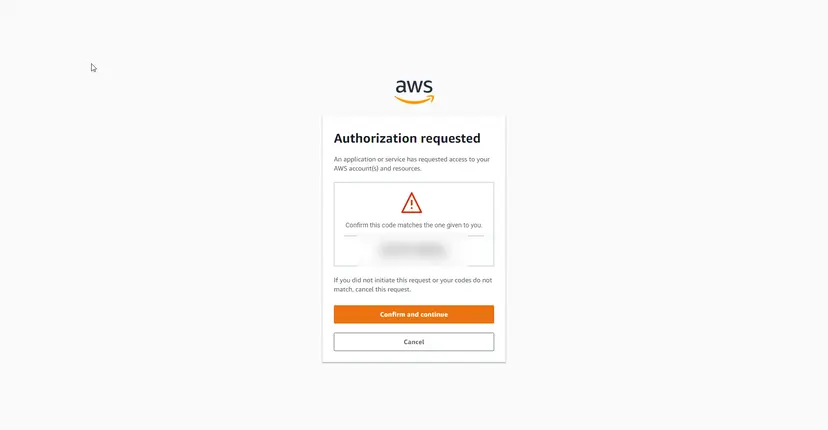
Follow the instructions on your default web browser. You’ll receive a notification when the authentication process is complete, and you can close the browser and return to VS Code.